Adding a Rep to your SummitCast account

As an Event Host or account Admin, you can create SummitCast accounts for your team members.
In this article:
What access do Reps have?
You can set two levels of access, depending on what your team member needs to do in SummitCast.
| Access | Rep with Admin access | Rep without Admin access |
|---|---|---|
| Add other Reps | Yes | |
| Assign Moderators for a session | Yes | |
| View event and session details | Yes | Yes |
| Access viewer logs | Yes | Yes |
| Download reports from Host Dashboard | Yes | Yes |
| Access each session’s links to share | Yes | Yes |
| If you have Presenters who are not part of your company, don’t add them as Reps in SummitCast. Instead, add them as Presenters in MeetMax. That way they can only access the event they’re presenting. | |
| If you’re also using MeetMax for your event, your Reps and Moderators will have separate logins for MeetMax and SummitCast |
Creating a Rep account
Anyone with Admin access to your SummitCast account can add Reps.
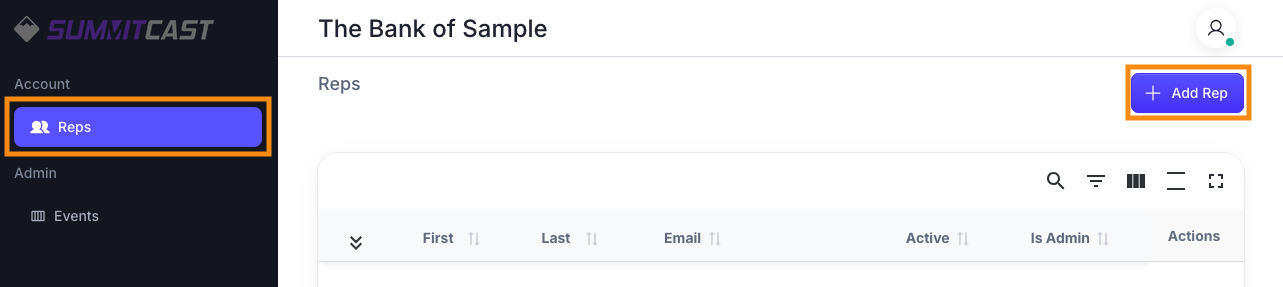
- Step 1. In the side menu, choose Reps.
- Head to the top right corner and click the Add Rep button:
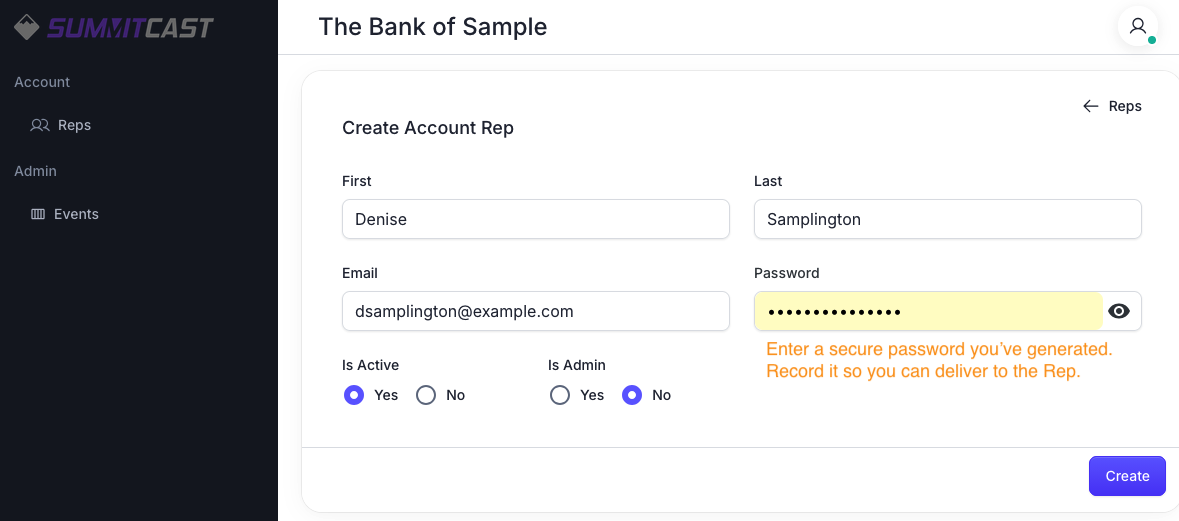
- Step 2. Enter the Rep’s First and Last name.
- Enter their Email, and a Password.
-
Record this password now so you can deliver it to the Rep. You won’t have access later.
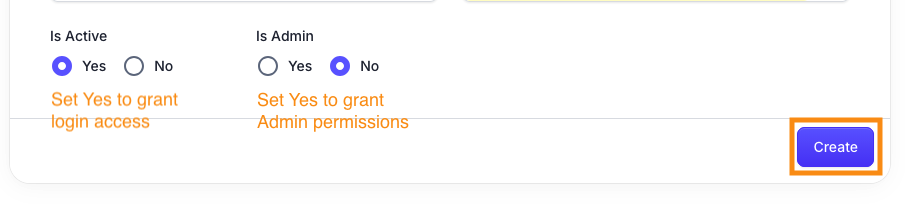
- Step 3. Add two settings:
- • Is Active: Set Yes initially. (If you need to disable this account later, you’ll set it to No.)
- • Is Admin: Set Yes if you want this Rep to have Admin access. Set No if they’ll be a non-Admin.
- Click Create to save the Rep:
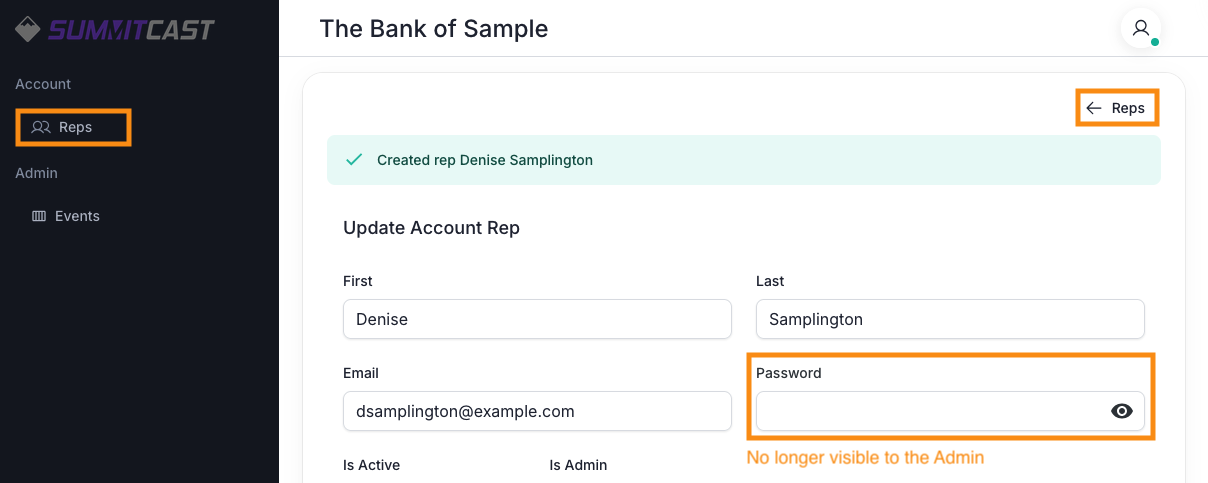
- Step 4. After you’ve saved the Rep account, you’ll see that the Password field now looks empty.
- The password you set is still attached to the account, but for security reasons, we’ve removed it from this form.
-
If the new Rep has Admin access to SummitCast, they can reset their password after logging in. Reps without Admin access can’t currently reset their password, but an Admin can do that for them. - Use either of the links to head back to the main list of Reps:
Delivering login details
SummitCast doesn’t send account details to the new Rep.
Instead, you’ll send the new Rep an email with this information:
- The Account ID you received from SummitCast
- The email address you set (This is their Username.)
- The password you’ve set
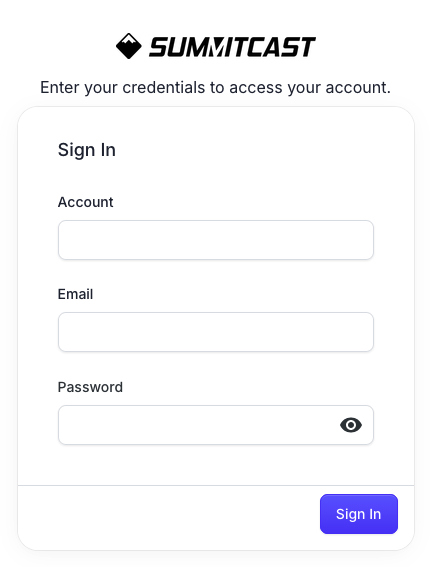
- The URL for SummitCast’s login page: https://event.summitcast.com/account/login