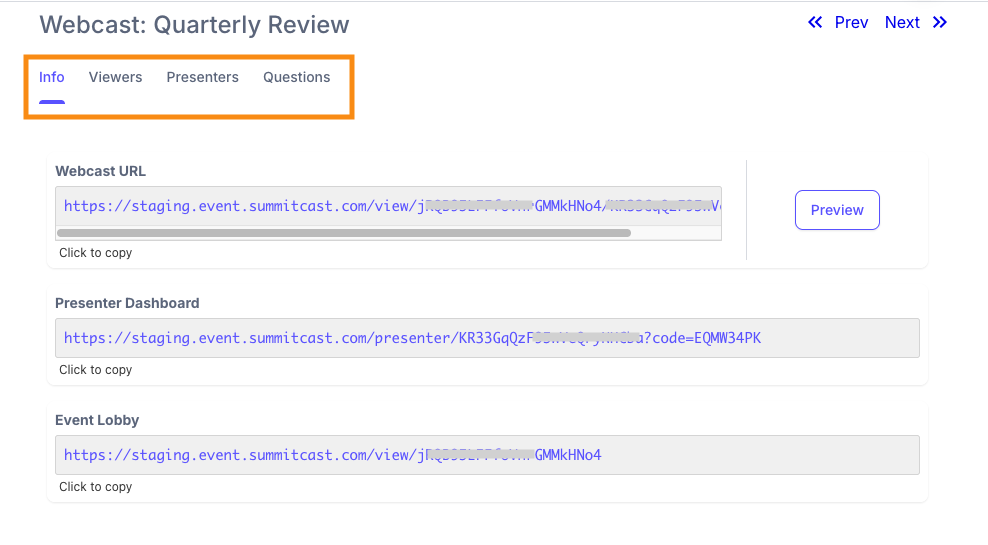
Adding a Moderator to a session

Once you’ve added someone as a Rep in your SummitCast account, you can grant them permission to moderate any session.
In this article:
- What access do Moderators have?
- Assigning a Moderator to a session
- Granting Moderator access from the Sessions List
- What the Moderator sees
What access do Moderators have?
A Rep with Moderator access can:
- Present sessions
- Handle Q&A
- Access View logs and download reports from the Host Dashboard
- Access each session’s links to share with others
Assigning a Moderator to a session
| We’re assuming here that you’ve already added a Rep account for this user. | |
| You can also use these steps to assign yourself as a Moderator for any session. |
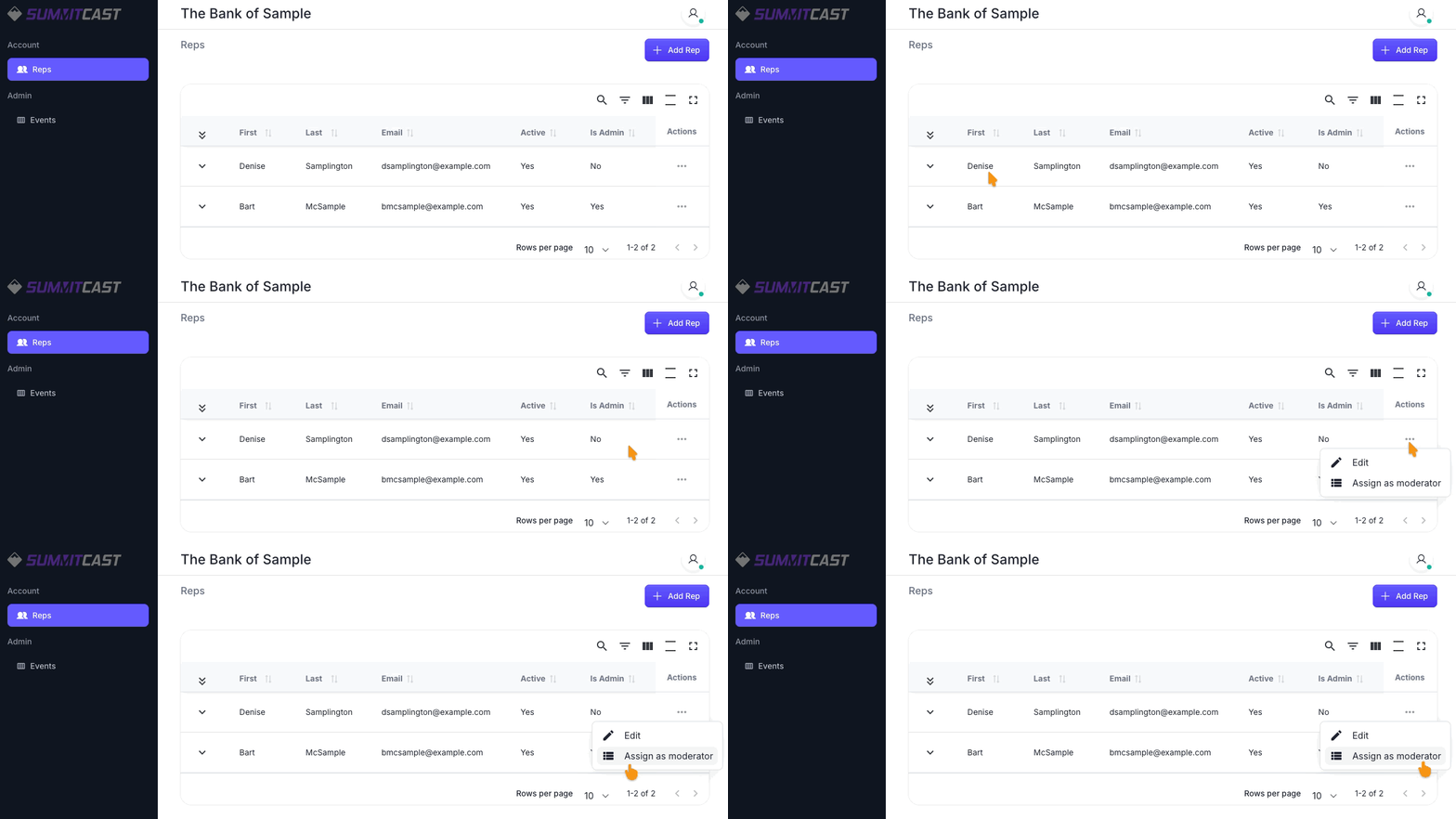
- Step 1. Head to the Reps page of your account.
- Step 2. Locate the Rep you need. Click the 3-dot icon, then choose Assign as Moderator:
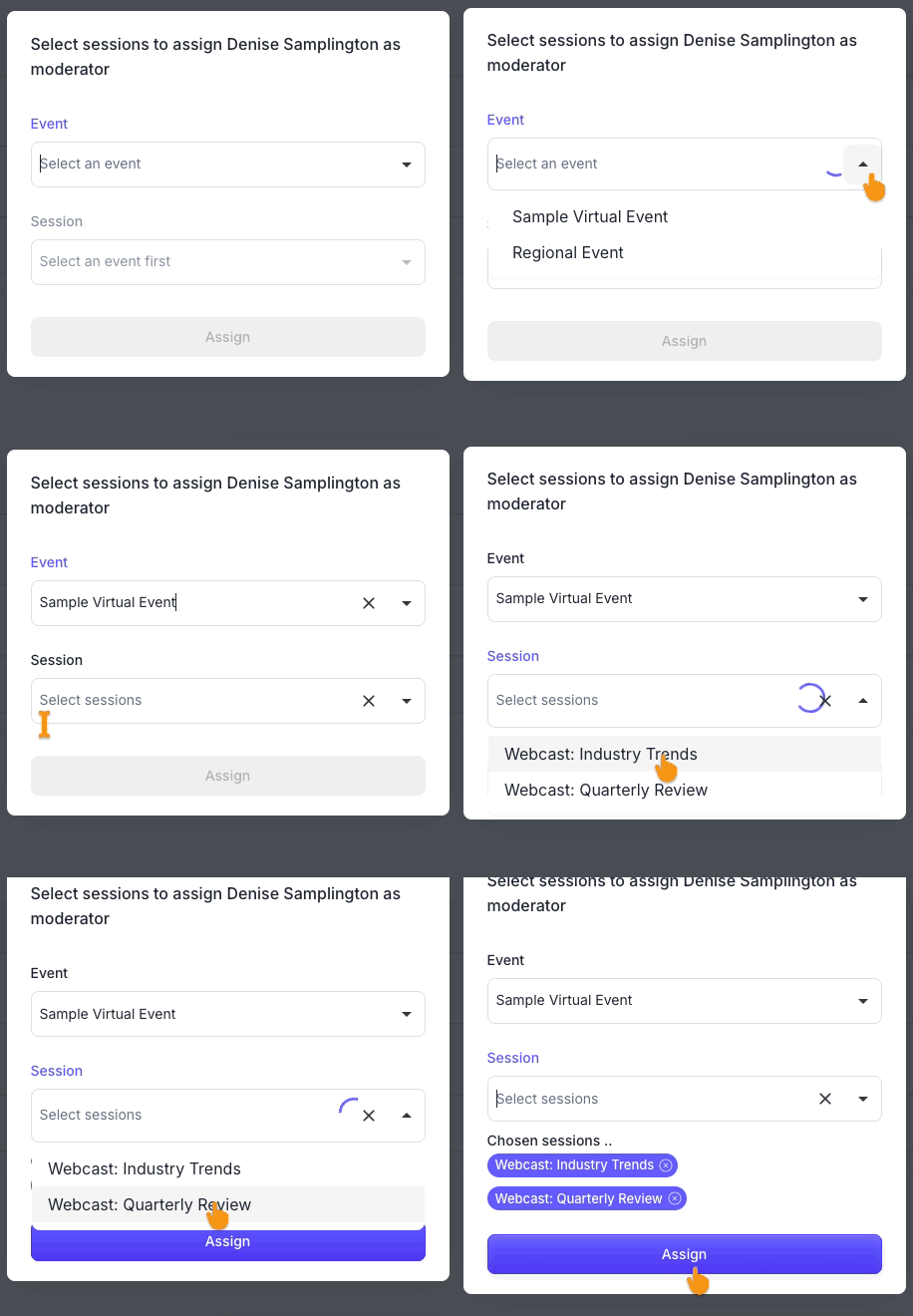
- Step 3. In the pop-up, choose an Event from your account’s event list.
- Choose one or more Sessions this Rep will moderate. Then click Assign:
-
Each Session you choose appears as a tag. If you need to remove access to a session later, click the X on its tag.
- Step 4. On the Reps page, you can now expand any account to see the sessions that Rep is moderating:
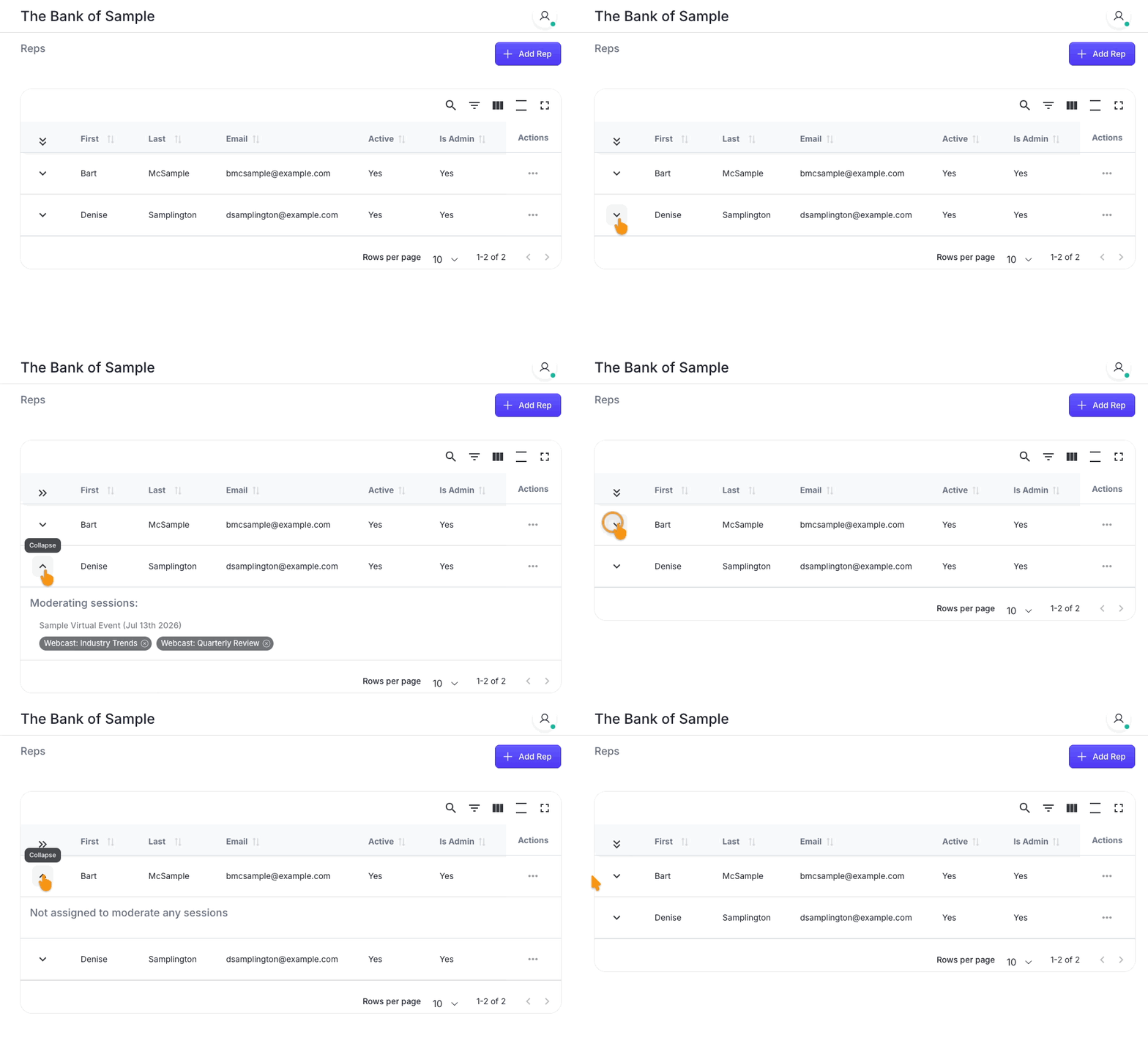
- Click the X on any tag from here, and you can remove moderator access to that session.
Granting Moderator access from the Sessions List
If you have many Events and Sessions in SummitCast, this alternate method lets you make Moderator assignments from a single location.
- Step 1. Head to the Events page of your account. Locate the event you need.
- Click the 3-dot icon, then choose Sessions:
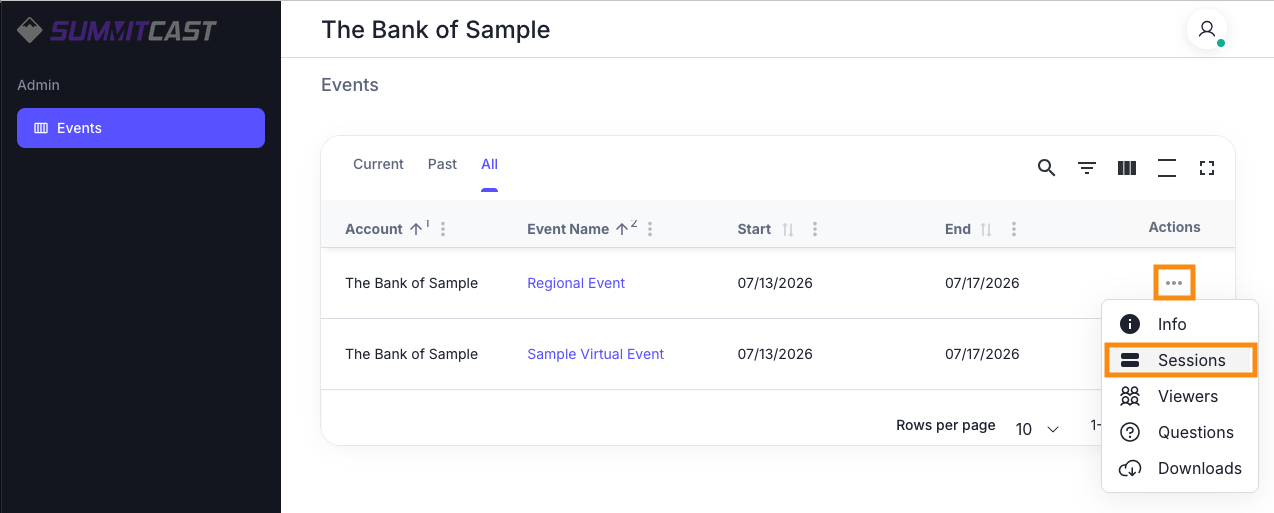
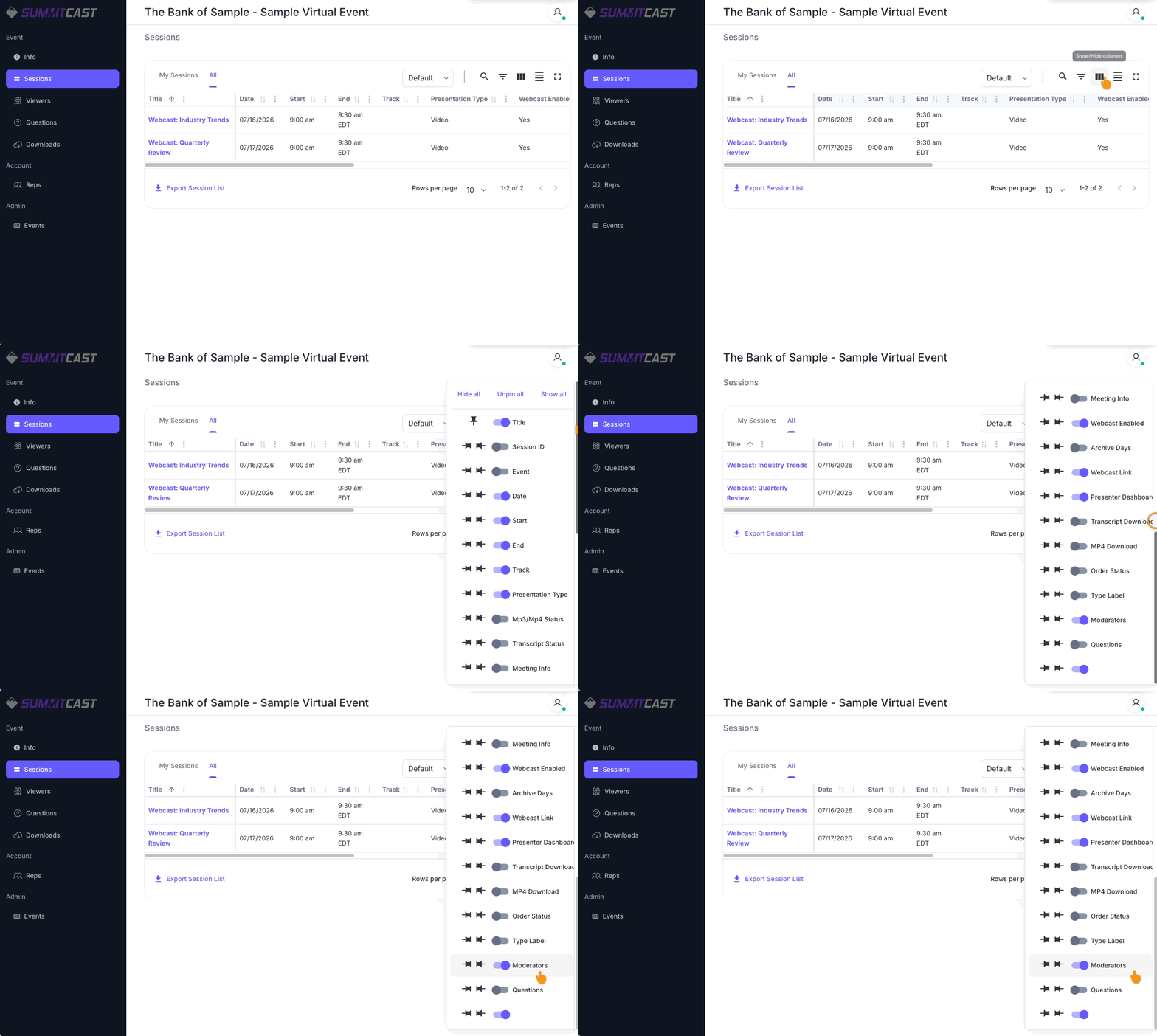
- Step 2. You’re now on the Sessions List for this event. You should have access to the Moderator column here.
- If you don’t see it, click the Show/Hide Columns icon. Toggle the switch on as shown below:
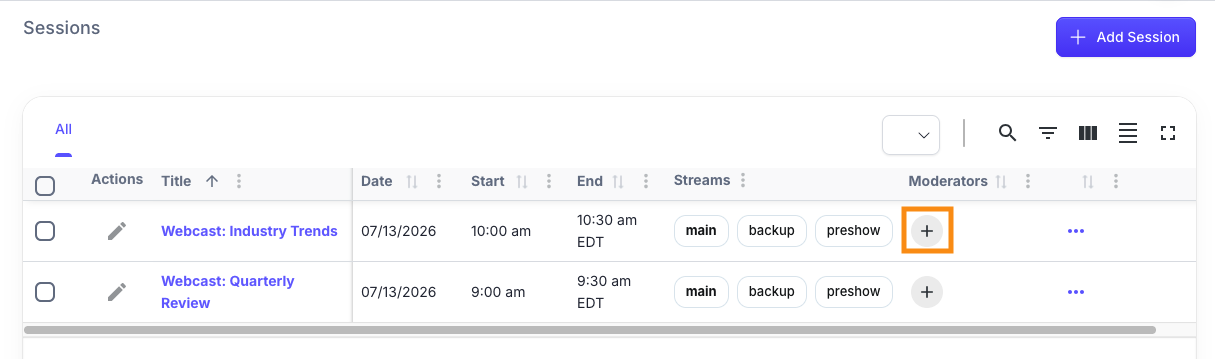
- Step 3. In the Moderator column, locate a session you need to assign Moderators to. Click the + button:
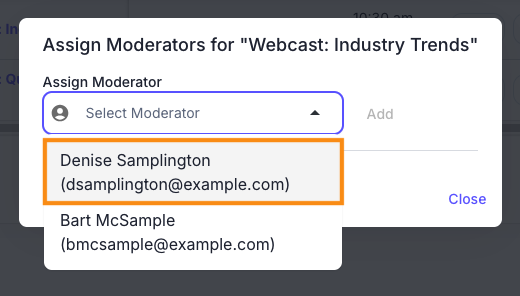
- Step 4. In the pop-up, choose the Moderator you want, and click Add.
- Repeat this step to add as many Moderators as you need. Then click Close:
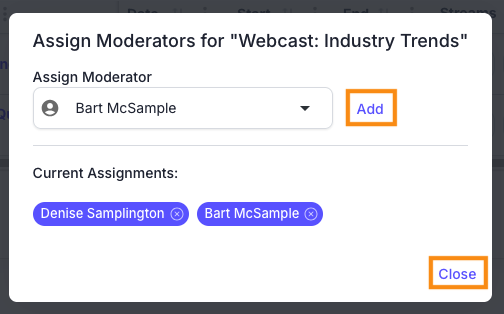
-
You can also unassign Moderators from this pop-up. Click the X on any tag. - Step 5. Back on the Sessions List, you can now see that Moderators are assigned. Hover over the circles to see their email addresses:

What the Moderator sees
When the Rep logs into SummitCast, they can head to the Events page.
From there, they’ll choose an Event and go to its Sessions list:
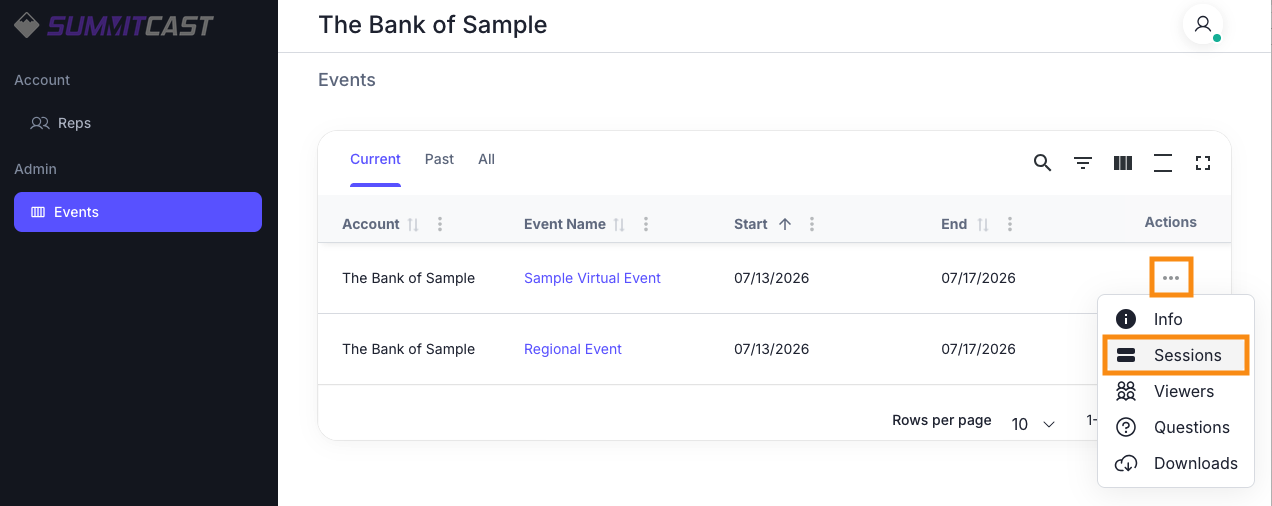
The Rep sees two tabs:
- My Sessions: Sessions where the Rep is a Moderator
- All: All scheduled Sessions for this event.
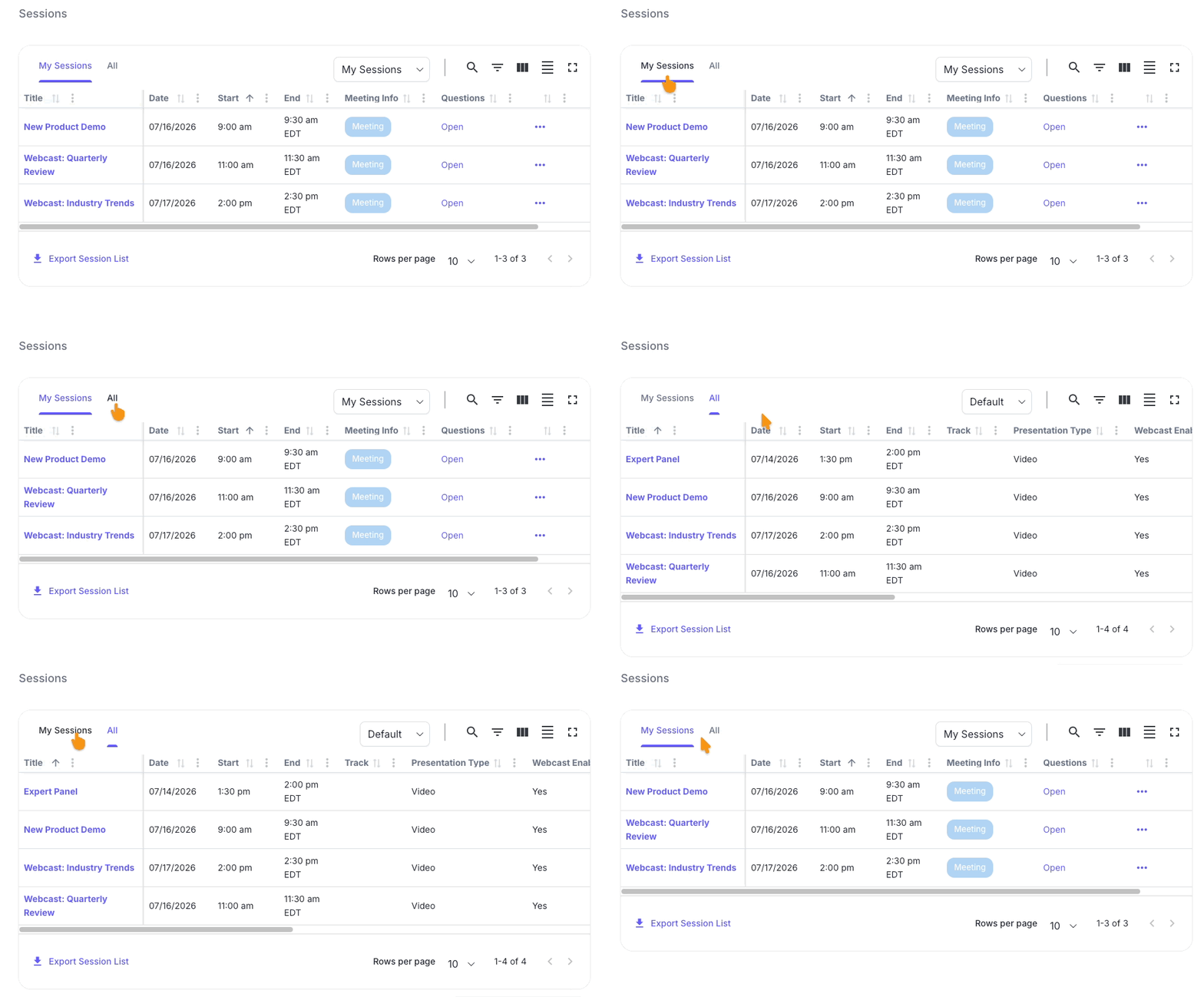
When they click on any Session title, the Moderator can access its links and other details: