In this article:
| The way you use the Host Dashboard depends on your event - whether you’re using MeetMax alongside SummitCast, and whether you’re hosting full-service webcasts or creating self-service webinars. Our teams will help you with the initial set-up for your event’s needs. Some of the options you see here might not appear on your customized Host Dashboard. |
Accessing the Dashboard
- If you’re hosting full-service webcasts, our SummitCast team will give you a login for your Host Dashboard.
- If your event takes place primarily in MeetMax, you can go to the Presentations List, and click the SummitCast Host Dashboard button.
- If you’re hosting self-service MeetMax Webinars, you’ll also use the SummitCast Host Dashboard button.
Reps List
When your event is created in SummitCast, our team will establish you as the Event Host.
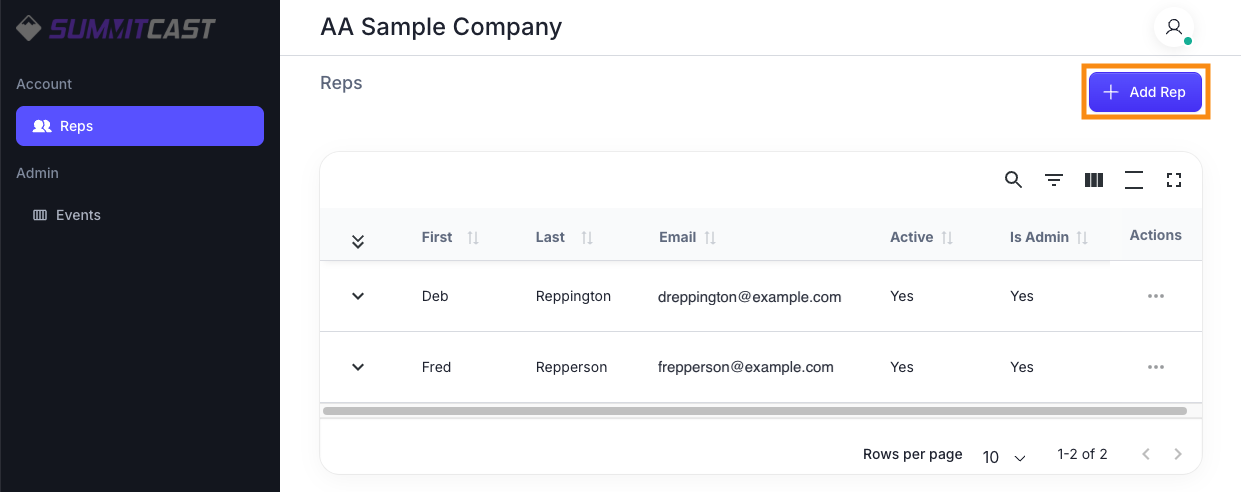
Depending on your event, you might also be granted access to the Reps page. Here, you can see a list of current Reps and add new ones to your SummitCast account.
Learn more about adding Reps here.
Events List
Our team creates events for you in SummitCast.
On the Events page, you’ll see a list of your events that have virtual sessions.
| If you’re also using MeetMax, your event list there will include your in-person events. In SummitCast, you’ll only see events that are partially or completely virtual. |
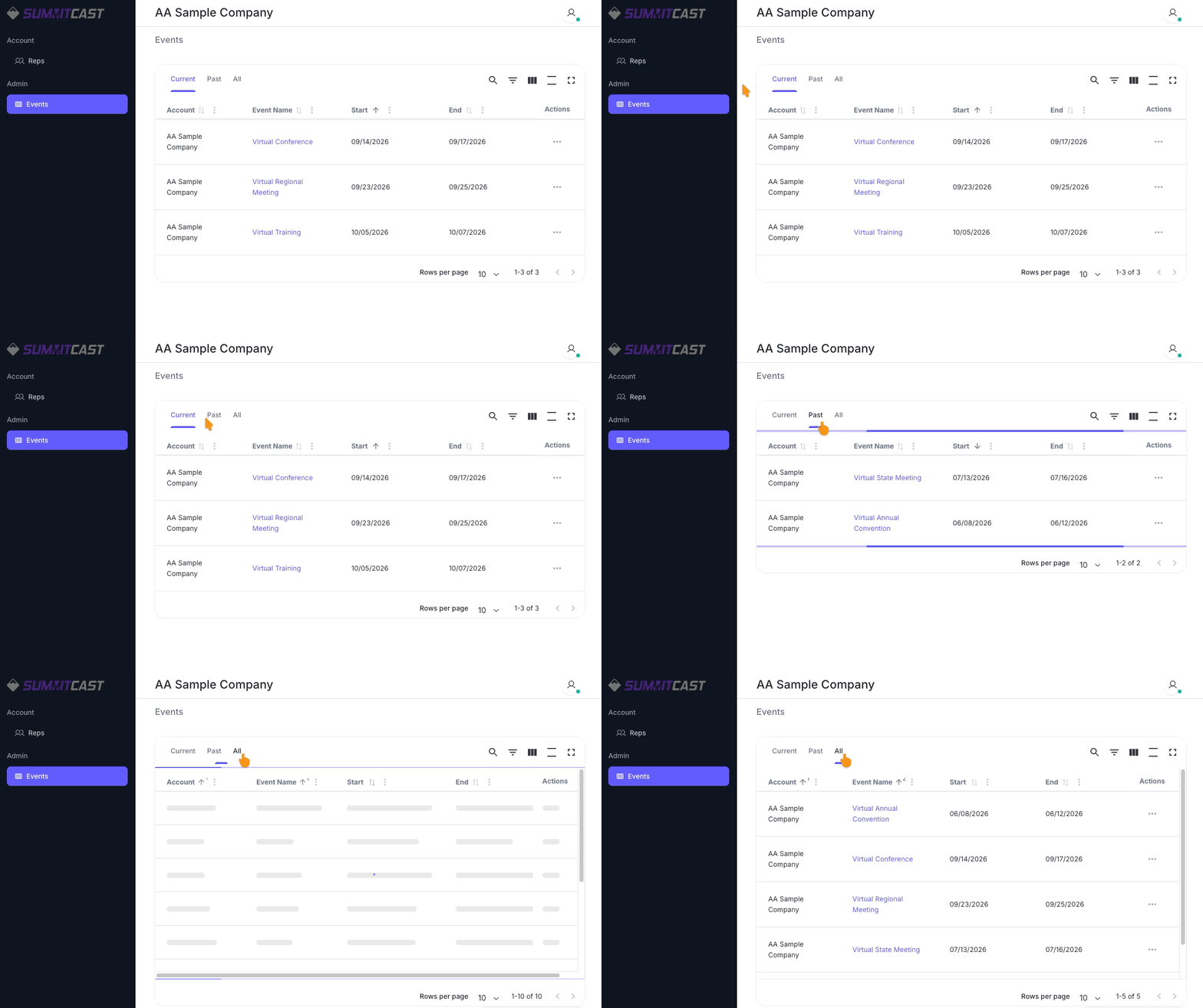
Use the tabs to toggle between views of your current/upcoming events, past events, and all events:
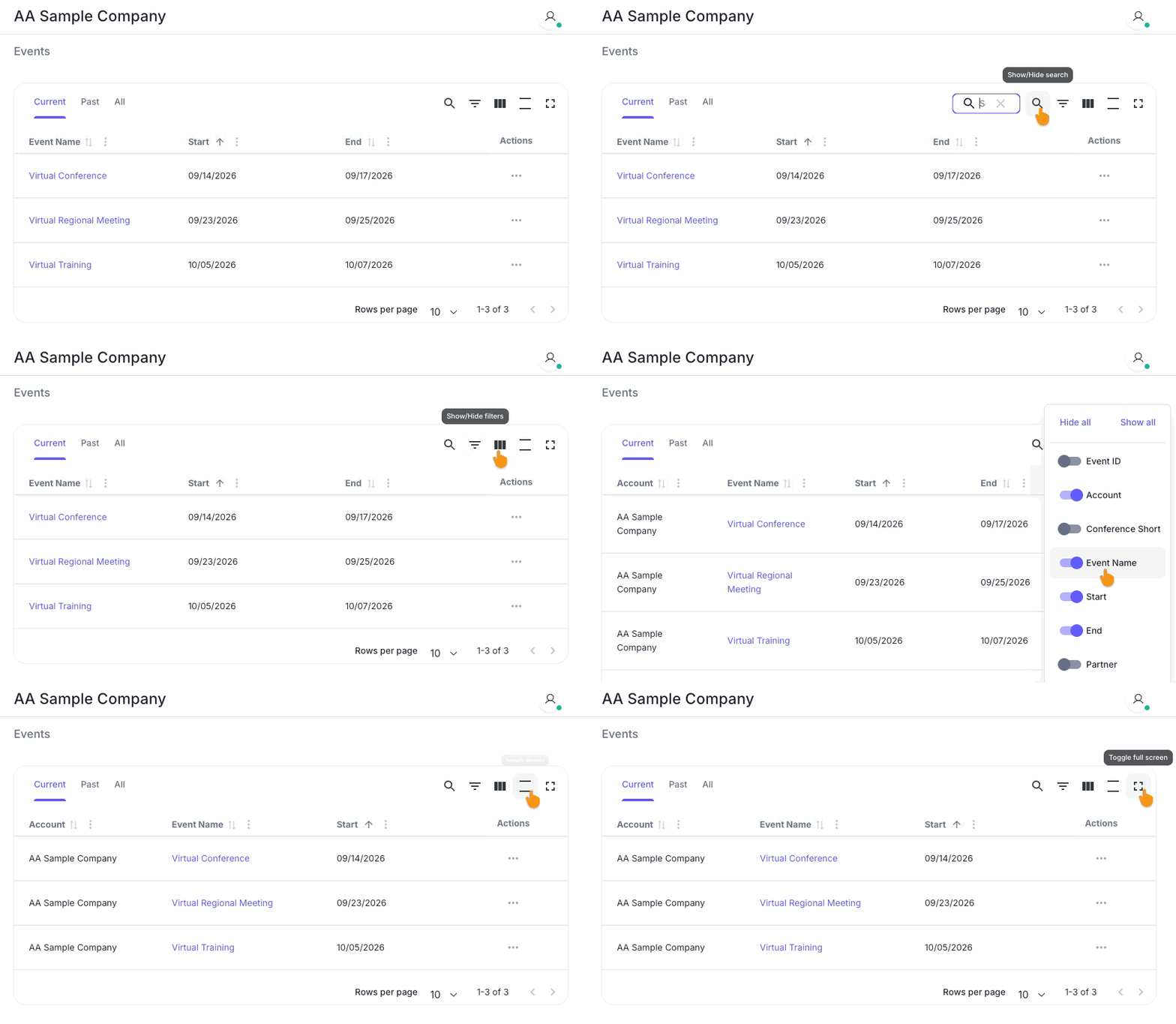
If you host many virtual events, the controls at the top right corner are helpful for locating the data you need:
- Search: Click the icon to search your list by event name, dates, times, and more.
- Filter: Click to enable the filter tools, which let you narrow the list to specific criteria.
- Columns: Toggle data columns on and off to customize your list display.
- Density: Click to increase or decrease the list’s spacing.
- Full Screen: Toggle the view on or off.
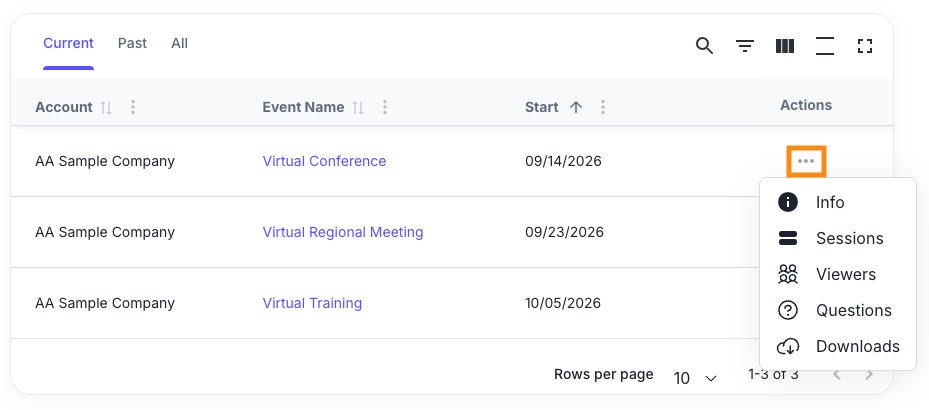
Use the Actions menu to access the data for this event as a whole (including all Sessions):
Sessions List
Our team will create Sessions for your event. These are individual virtual presentations or meetings, with a live webcast or video attached.
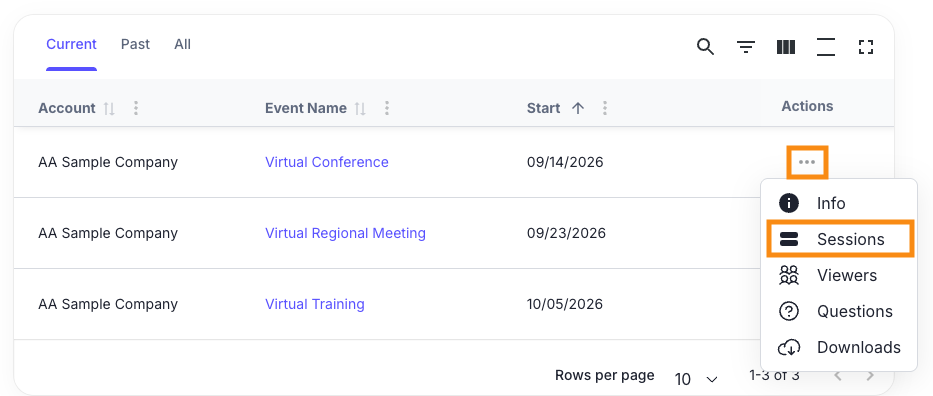
Click the Actions icon for any Event, and you’ll access its Sessions:
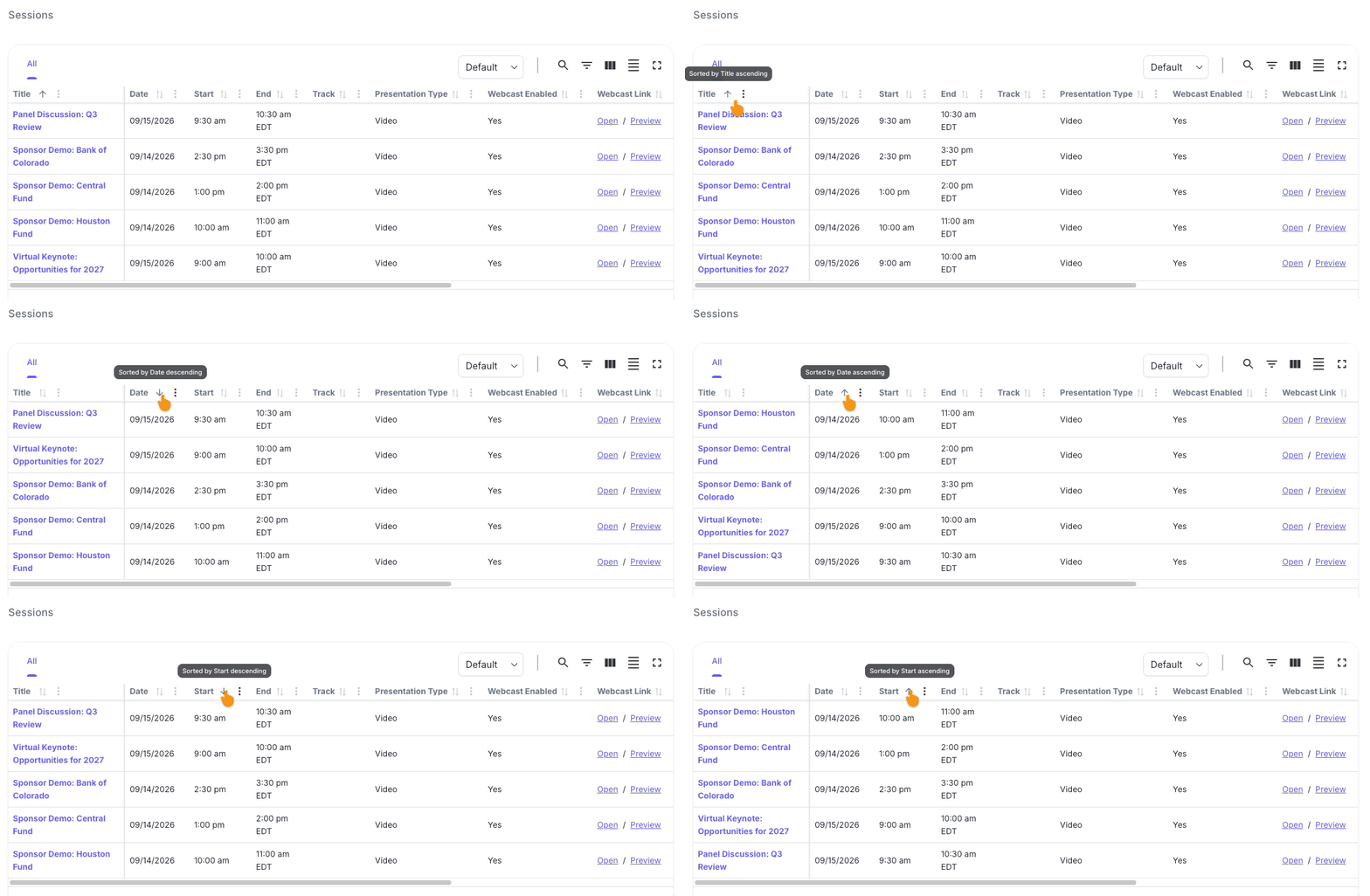
On the Sessions page, by default you’ll see your sessions listed alphabetically by Title.
To re-order the list, click the Sort icon on any other column. It might be helpful, for example, to place sessions in date order, or start time order:
The Sessions List has the same searching, filtering, and customization options as your Event List (see the section above):
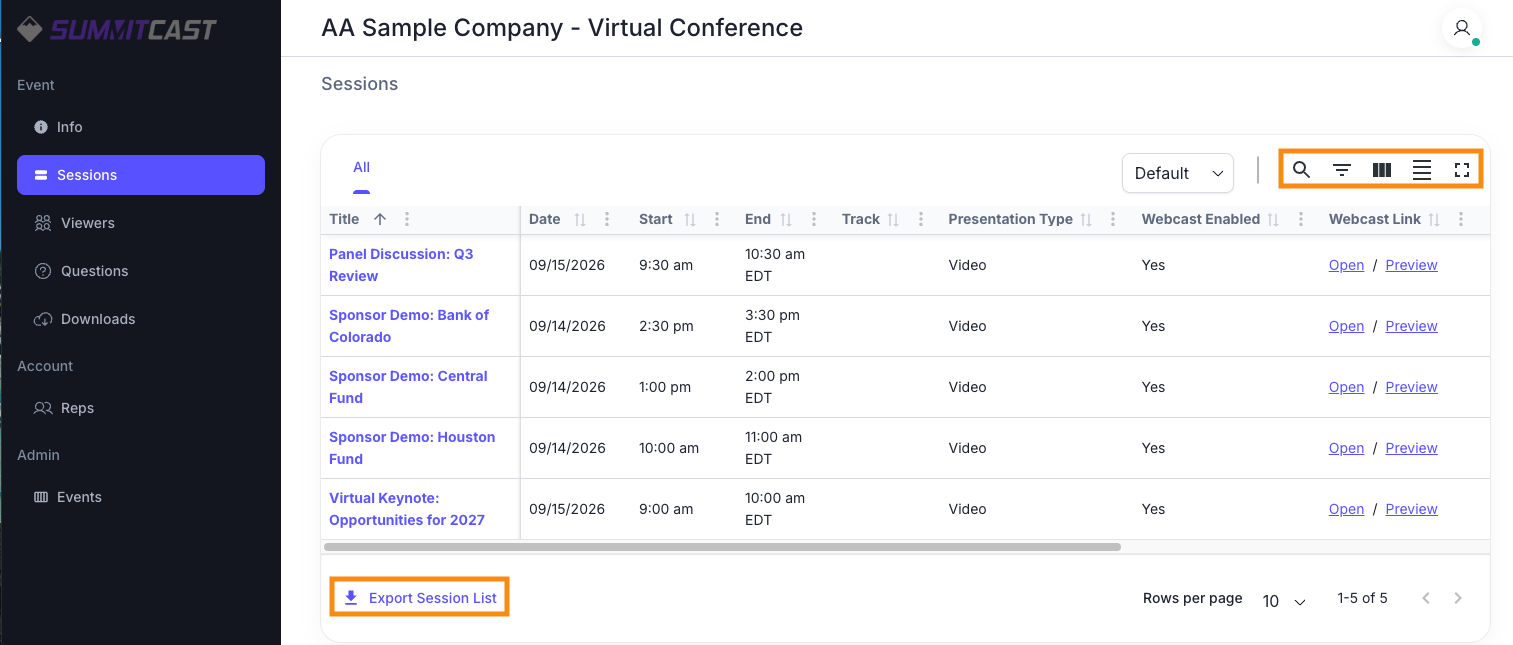
Click the Export Sessions List link any time, as shown above. The download always reflects your current list configuration.
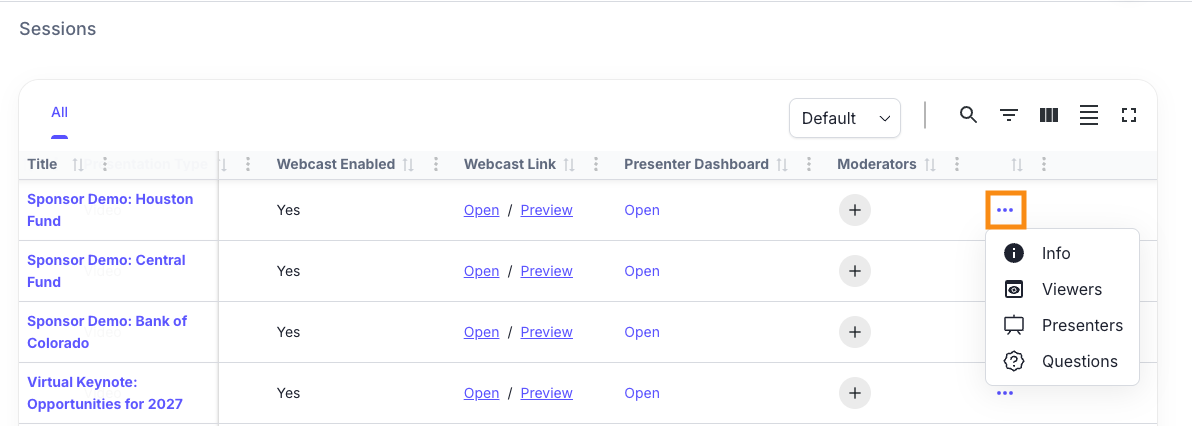
Click the 3-dot icon for any Session, and access its data:
- Info: Get the webcast and presenter links for this session.
- Viewers: See who registered, who viewed the session, and who’s viewing it now.
- Presenters: See which Presenters are assigned to this session, and add more.
- Questions: View and download questions viewers submitted during this session.
| These options show data for only this session. |
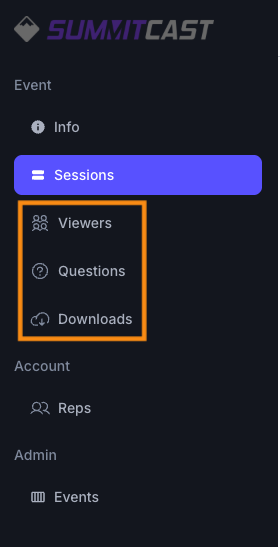
When you’re on the Sessions page, you’ll also see new options in the left menu.
- Viewers: View or download lists of registrants and attendees for all Sessions in this event.
- Questions: View or download all questions raised during all of this event’s Sessions.
- Downloads: If you’re providing any downloadable material to this event’s viewers, you can download those files here.